A great reference to object picking and selection in OpenGL:
http://web.engr.oregonstate.edu/~mjb/cs553/Handouts/Picking/picking.pdf

Monday, March 11, 2013

Friday, March 8, 2013
Setting up 3D Vision Pro glasses
After installing drivers for 3D Vision Pro glasses, right click on the desktop and select NVIDIA Control Panel.
Under 3D Settings, select Manage 3D settings. Make sure that "Stereo - Display mode" is set to "Generic active stereo (with NVIDIA 3D Vision)".
Under Stereoscopic 3D, select Manage 3D Vision Pro and add the glasses.
Right click on the desktop again and select Screen resolution. Make sure that the 3D Vision ready display is set to 120 Hz.
In the NVIDIA Control Panel, launch the test application to ensure the glasses have been successfully paired.
Under 3D Settings, select Manage 3D settings. Make sure that "Stereo - Display mode" is set to "Generic active stereo (with NVIDIA 3D Vision)".
Under Stereoscopic 3D, select Manage 3D Vision Pro and add the glasses.
Right click on the desktop again and select Screen resolution. Make sure that the 3D Vision ready display is set to 120 Hz.
In the NVIDIA Control Panel, launch the test application to ensure the glasses have been successfully paired.
Wednesday, February 27, 2013
Landsat 8 bands
Landsat 8 data bands will differ from those of Landsat 5 or Landsat 7. Here are the new band designations (resolution of 30 meters unless otherwise noted):
For color infrared, use combination 5,4,3.
For false color, use combinations 6,5,4; 7,6,4; or 7,5,3.
 http://landsat.usgs.gov/L8_band_combos.php
- Band 1 - Coastal aerosol (ultra-blue)
- Band 2 - Blue
- Band 3 - Green
- Band 4 - Red
- Band 5 - Near Infrared (NIR)
- Band 6 - SWIR 1
- Band 7 - SWIR 2
- Band 8 - Panchromatic (15 meter resolution)
- Band 9 - Cirrus
- Band 10 - Thermal Infrared (TIRS) 1 (100 meter resolution)
- Band 11 - Thermal Infrared (TIRS) 2 (100 meter resolution)
For color infrared, use combination 5,4,3.
For false color, use combinations 6,5,4; 7,6,4; or 7,5,3.

Tuesday, February 5, 2013
Safaricom in Kenya
To activate data you need to download apn settings. Call ussd *544# and in options select 98 for more options. Then select 10 for internet settings. Your phone will download the apn settings. Send an SMS to 450 with the text "Balance" to get prepayed data balance.
Friday, December 28, 2012
Bayes Ball!
A good illustration of Bayesian conditional networks:

http://www.cs.ubc.ca/~murphyk/Bayes/Figures/bayes_ball_no_det.gif
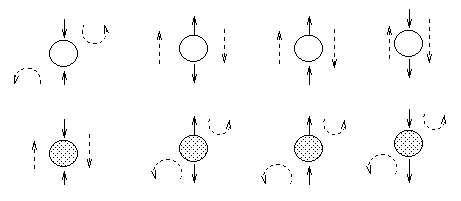
http://www.cs.ubc.ca/~murphyk/Bayes/Figures/bayes_ball_no_det.gif
Monday, December 3, 2012
Using ArcGIS to document work products
When using ArcGIS, it's not always possible to name a given piece of data in a way that retains all the information on how it was generated--what the inputs were, how raster values were calculated, etc. Ideally, a log would be kept to document this sort of information.
Another option is embedded right in Arc: the Results pane. If you save the .mxd after every process you run, all the information you need is retained there.
(It's probably still good to keep a log for important data, especially if files might be moved or renamed.)
Another option is embedded right in Arc: the Results pane. If you save the .mxd after every process you run, all the information you need is retained there.
(It's probably still good to keep a log for important data, especially if files might be moved or renamed.)
Tuesday, November 27, 2012
Autosave on Notepad++
Notepad++ is a great open-source programmers' text editor; behavior of its suit of plugins is not uniformly supported for x64 platforms. Auto-save is a particularly useful one if you have a computer that locks up an crashes when running memory-intensive processes. A simple workaround for getting it to work on x64 platforms is posted here.
Subscribe to:
Posts (Atom)